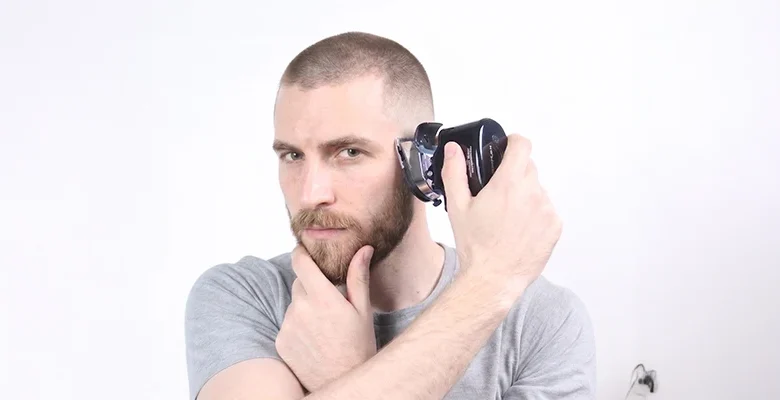
A buzz cut takes one pass with a set of clippers. Undoing it takes seasons. That imbalance is why people sit on the decision for weeks, scroll through photos of strangers with the same jawline, and then talk themselves out of it in the barber’s chair.
An AI preview does not settle the question, but it moves it. Instead of imagining your own head shaved, you look at a picture of it.
Before you start: what a preview is actually good for
A generated buzz cut is a plausible rendering, not a measurement. It shows head shape, how far your hairline has moved, how much your ears stand out once nothing covers them. It cannot tell you your hair density at 3 mm, or predict patchiness that only shows up under a barber’s light. Treat it as a way to rule options out.
The walkthrough below uses the Overchat AI Buzz Cut Filter, a browser tool whose page states the whole promise in one line: upload a photo, press one button, and the AI clips your hair short while keeping your face, outfit and photo exactly the same. Three steps on the page, no account, free at the time of writing.
Step 1. Shoot the photo the model needs
Everything downstream depends on this. The tool asks for a clear, front-facing photo, and that phrasing is doing real work: front-facing means the camera is level with your eyes, not held above them. Push your hair back off the temples before you shoot, even if it feels unnatural. The model has to guess where your hairline sits, and a curtain of hair across the forehead is the biggest source of a wrong guess.
Where this goes wrong: hats and hoods. A beanie gives the model a hairline it invents from scratch, and the invented one tends to be more generous than yours. Backlighting is the second trap — a window behind your head turns your hair into a dark mass with no visible edge, and the render fills that mass with scalp in odd places.
Step 2. Upload it
Drag the file into the browser, browse for it, or shoot a selfie in the page. The Overchat AI page explicitly says HEIC photos straight from an iPhone work, which matters more than it sounds — HEIC is the default capture format on recent iPhones, and plenty of web tools reject it silently, leaving you converting files before you can start.
Where this goes wrong: uploading a screenshot of a social post rather than the original file, which drops resolution and adds interface furniture around the head. Crop to head and shoulders in your phone’s own editor first.
Step 3. Press the button once and wait
There is one control. No slider for grade length, no menu of fades. The page’s own flow is three steps — upload, AI clips your hair to a clean buzz cut, then compare, download and share in HD. What stays fixed is the interesting part: your face, lighting, expression, glasses, beard and background all carry over untouched, so the only variable between the two images is hair.
Behind that one button sits a broader product. Overchat AI is an all-in-one app bundling 150+ purpose-built tools across image, video, audio and text, powered by models from GPT, Claude, Gemini, Grok, Kimi and Qwen, reachable on web, iOS and Android by 350,000+ users. A Pro subscription is billed at $14.99 each month, or $59.99 if you pay for the year — and that annual figure is roughly what one month of ChatGPT Plus, Claude Pro and Google AI Pro costs together.
Where this goes wrong: re-running the same photo and expecting a different grade. Generative edits vary slightly run to run, but a single-button tool has no length control, so if you want to compare a number 1 against a number 4 you need a tool with a style menu. Two of them are in the table below.
Step 4. Read the result the way a barber would
Look at four things in order. The hairline: does the render put your temples where you know they are, or has it drawn a straighter, younger line? Then the crown, where the skull’s shape stops being hidden by volume. Then the ears, which change apparent size when nothing softens them. Then the jaw, because a buzz cut shifts the visual weight downward and a beard that looked balanced under long hair can dominate.
Where this goes wrong: judging the render at phone-thumbnail size. Open it full screen. Edge artifacts around the ear and the nape are the usual giveaway that the model was guessing there — which makes that part of the preview the least reliable part.
Step 5. Download and take it with you
The result comes down in HD. Save both frames — the original and the render — and show the barber both, because the pair communicates what you want better than a stranger’s photo.
Where this goes wrong: assuming the render implies a grade. It does not. Bring a number: a 1 on top is very short, a 4 leaves visible texture. Say it out loud in the chair.
Troubleshooting: five failures and their causes
- The hairline looks too good. Your fringe covered it in the source photo. Reshoot with hair pushed back.
- The scalp looks plastic. A beauty filter was baked into the original. Use an unedited camera roll file.
- Glasses come back warped. Thick frames overlap the temple region the model is rewriting. Try a frameless pair or remove them.
- Hair color shifts. Short hair reads mostly as scalp tone, so a very dark or very light original can drift.
- The upload is rejected. Check the size cap. AILab Tools, for instance, documents a 3 MB ceiling on PNG, JPG, JPEG and WEBP.
If this tool is not the right one
The single-button approach answers one question: buzz or no buzz. If your question is which buzz, you need a style menu.
| Tool | How you drive it | Documented inputs and access | One concrete weakness |
|---|---|---|---|
| Overchat AI Buzz Cut Filter | Upload, one button, compare and download in HD | Common image formats plus iPhone HEIC; free, no account per the page | No length or fade control — you get one interpretation of “buzz cut” |
| Fotor buzz cut filter | Upload, pick gender, style and color, then Generate | Nine listed styles, hair colors and beard options; the page states no login or signup and watermark-free output | The style menu skews stylized (platinum, dyed), which is not what a barber consultation needs |
| AILab Tools buzz cut filter | Upload, pick a style, generate and download | PNG, JPG, JPEG or WEBP, max 3 MB; results held 24 hours; API documented | 3 MB is tight for a modern phone photo, so you may have to downscale first |
| AirBrush buzz cut filter | Upload, choose a preset filter or type a prompt describing fade, shape or length | Browser plus iOS, Android, Windows and macOS apps; the site advertises a 7-day free trial for the app | Prompt-driven output drifts — the same wording can return noticeably different fades |
Perfect Corp’s YouCam Online Editor sits in a third category. Its hairstyle generator is a catalog rather than a filter — more than 200 looks, a buzz among them — and it asks you to register first. New accounts get 5 credits and each generated style spends 2, so you see two previews before the paywall.


